How to Clip on Twitch: Desktop, Mobile, OBS, and Vertical Re-Cuts
Step-by-step Twitch clipping for desktop, mobile, and OBS plus the vertical re-cut workflow that earns qualified views off-platform.

TL;DR
Twitch clipping happens at two altitudes. The native 60-second clip is triggered by Alt+X on desktop, the share sheet on mobile, or the OBS Replay Buffer for source-resolution capture. The off-platform vertical re-cut is where qualified views compound: same source moment, four destinations (TikTok, YouTube Shorts, Reels, X), watch-time-tuned per platform. The pillar walks through both lanes and ends with the buyer-side question of when to keep clipping yourself versus when to hand the production cycle to a managed desk pricing on a per-qualified-view ledger.
What is Twitch clipping
Twitch clipping is the act of capturing a 5 to 60 second moment from a live Twitch stream or an archived VOD and publishing it as a standalone shareable asset. The clip is hosted at a clips.twitch.tv URL, can be embedded on the open web, and can be downloaded as an MP4 file for re-cutting onto vertical short-form platforms.
Two cohorts use the term differently. Streamers say "clipping" and mean the in-platform 60-second control they hit during a raid or a poggers moment. Brand-side buyers say "clipping" and mean the full production cycle of source capture plus vertical re-cut plus distribution onto TikTok, YouTube Shorts, Reels, and X. Both definitions are correct. The pillar covers both.
A native Twitch clip earns views inside the Twitch ecosystem. A vertical re-cut earns views inside the algorithmic feed of every other platform on the open internet. The same source moment can do both at once, and the operators who run both lanes from one source clip ship 3x to 7x the qualified-view yield of operators who only publish the native asset.
Native Twitch clipping: the in-platform workflow
The Twitch player on twitch.tv ships a clipping control directly under the video. On desktop the keyboard shortcut Alt+X opens the clip editor for the last 90 seconds of stream. The clip editor shows a timeline with two drag handles. Drag the in handle to mark the start, drag the out handle to mark the end, and the editor enforces the 60-second cap automatically.
The title field below the timeline is the most under-used surface on Twitch. Default titles like "Best moment" or "lol" get filtered out by Twitch search and YouTube search the moment the clip leaves the platform. Titles that pack named entities, the streamer handle, and the actual moment compound across every search index that crawls clips.twitch.tv. Two or three named entities per title is the operator floor.
After publish the clip lives at a URL of the form clips.twitch.tv/CapitalizedSlug-RandomString. That URL embeds in any tweet, any Reddit post, any blog, and any Discord channel. The clip is also discoverable inside Twitch under the channel Clips tab, sortable by all-time, by trending, and by recent.
The mobile workflow is the same primitive with a different control surface. Open the stream in the Twitch iOS or Android app, tap the share icon under the player, and the bottom sheet exposes a Clip option alongside Copy Link. Tap Clip and the same 60-second editor loads with mobile-friendly drag handles. Title, publish, and the clip URL is identical to the desktop output.
OBS clipping is the third lane and the one that matters for source-resolution downstream work. Enable Replay Buffer in OBS Studio settings, set a hotkey to Save Replay, and the buffer continuously holds the last 60 to 120 seconds of stream output in memory. Press the hotkey when the moment lands and OBS writes the buffer to disk as a full-resolution MP4. This bypasses the Twitch 60-second cap, captures source resolution rather than transcoded playback, and produces an asset that vertical re-cut tooling can crop to 9:16 without compression artifacts.
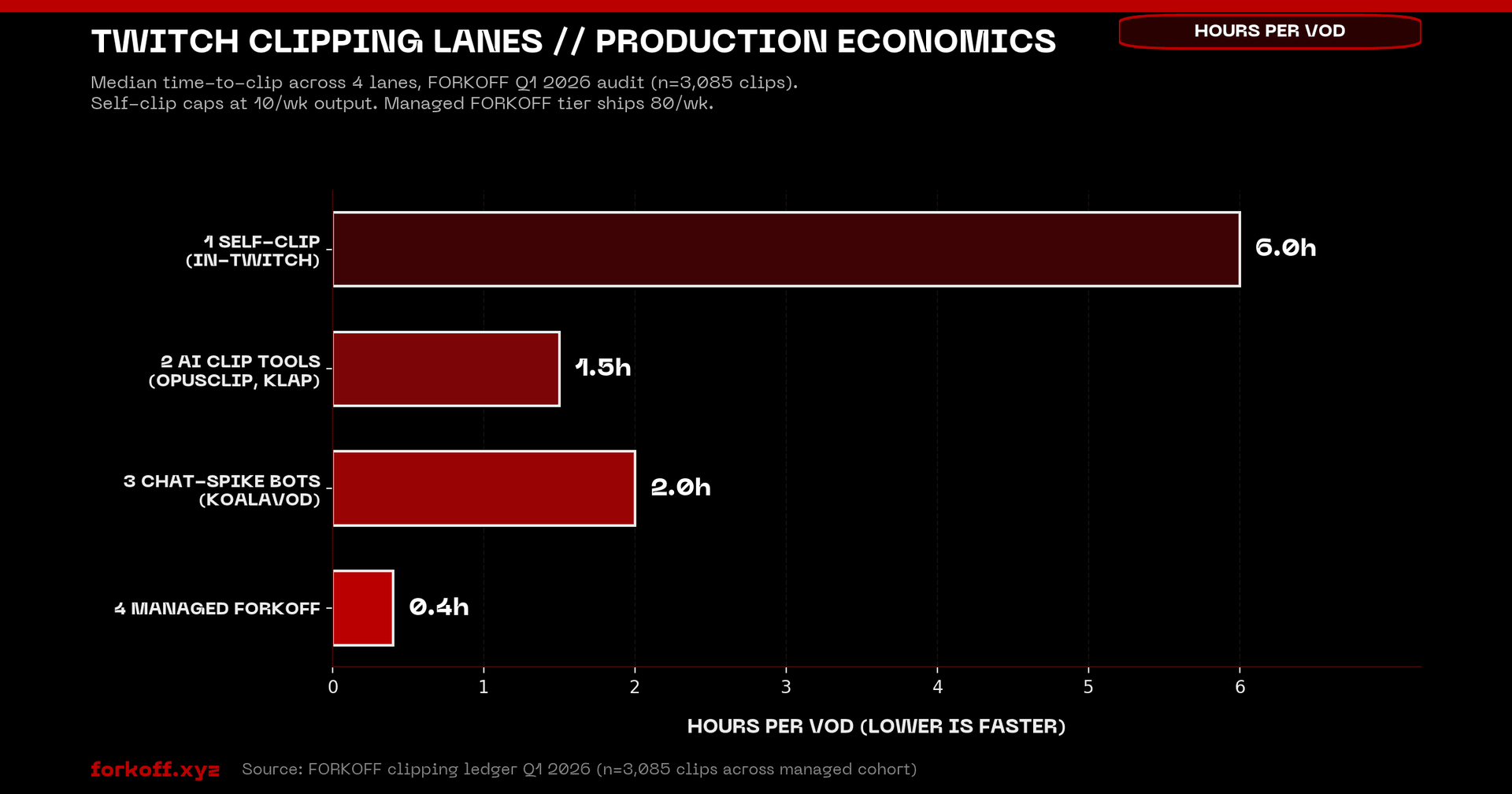
Off-platform vertical re-cuts: the FORKOFF wedge
The native Twitch clip is the source. The vertical re-cut is the asset that earns the qualified view. These are two different production stages with two different unit economics.
The vertical re-cut takes the 60-second native clip or the OBS source MP4 and crops it to a 9:16 frame for TikTok, YouTube Shorts, and Instagram Reels. The crop is not a center-crop. It tracks the streamer's face, the chat overlay, the gameplay focal point, or all three depending on the moment. A center-crop kills retention by minute one because the focal action is off-frame. A face-tracked crop holds retention because the eye lands on the streamer reacting and the algorithm reads the engagement.
The second variable is captions. Vertical short-form platforms route 70 to 85 percent of plays through sound-off feeds. A clip without captions loses the joke, the reaction, and the punch line within 3 seconds. Captions ship below the streamer face, large, on a single line, with the punch words in a brand color.
Hook design is the third variable and the most under-built. The first 1.5 seconds of a vertical clip decide whether the algorithm shows it to the next viewer. A native Twitch clip starts with the moment because the audience landed on it deliberately. A vertical re-cut has to start with a hook that pulls a stranger in. The hook is usually a frame from the punch line played first, with a "wait for it" caption, then the buildup, then the payoff.
At FORKOFF we treat this lane as the wedge for a unit-economics reason. A native Twitch clip earns Twitch ad share at $0.01 to $0.07 per thousand views. A vertical re-cut on TikTok or Shorts can earn brand sponsorship distribution at $0.003 per qualified view on the FORKOFF ledger, roughly 3x to 33x cheaper than the unmanaged industry average of $0.01 to $0.10. The full mechanism is documented at Twitch clipping built for streamers.
Step by step: clip Twitch from desktop, mobile, and OBS
Desktop
- Open the live stream or VOD on twitch.tv. Any browser works.
- Press Alt+X. The clip editor overlay opens with the last 90 seconds pre-loaded.
- Drag the in and out handles until the timeline isolates the 5 to 60 second moment.
- Type the title. Pack named entities first: streamer name, opponent or guest name, the moment in 4 to 6 words.
- Click Publish. The clip URL appears at the top of the editor. Copy it.
To download the MP4, append ?download=true to the clip URL or paste it into an MP4 downloader extension.
Mobile (iOS and Android)
- Open the Twitch app. Load the stream or the channel VOD list.
- Tap the share icon under the player. The bottom sheet exposes Clip alongside Copy Link.
- Tap Clip. The 60-second timeline loads with two drag handles.
- Drag to isolate the moment. Add a title with the streamer name plus the moment.
- Tap Publish. The clip URL is shared via the iOS or Android share sheet.
OBS Studio (source-resolution capture)
- Open OBS. Go to Settings then Output. Switch Output Mode to Advanced and find the Replay Buffer tab.
- Enable Replay Buffer. Set Maximum Replay Time to 90 or 120 seconds. Set the path to a folder you watch.
- Go to Settings then Hotkeys. Find Replay Buffer and bind a hotkey to Save Replay.
- Start the Replay Buffer from the OBS dock. The buffer is now holding the last 90 to 120 seconds of stream in memory.
- When a moment lands, press the hotkey. OBS writes a full-resolution MP4 to disk before the buffer cycles.
The OBS lane is mandatory once the streamer or the agency is shipping more than 20 clips per week, because the source quality compounds across every downstream re-cut. Twitch transcoded playback at 1080p loses detail that a 1080p OBS source preserves, and that detail matters when the re-cut is cropped, captioned, and recompressed for short-form distribution.

Hridoy Rehman
@hridoyreh
3. Free Online Tools My developer built 10 free tools. 3 reasons to make simple free tools: • Get consistent traffic • Get high-quality backlinks • Increase user session time Even AI can't reduce clicks on tools.
Best clip moments: raid, host, sub-train, and Kappa-culture beats
Not every moment on a Twitch stream is clip-worthy. The 6 patterns below are the operator floor for what to capture.
- The reaction. A streamer reacting on camera to a chat message, a game event, or a viewer donation is the highest-yielding clip pattern on Twitch. The reaction face plus the on-screen context is self-contained.
- The raid or host moment. When a streamer raids another at the end of a session, the receiving stream gets a flood of new viewers and a moment of cultural cross-over. The greeting clips earn views from both fanbases.
- The sub-train. When 15 or more subs land in a 5-minute window the streamer reacts on camera, the chat overlays explode, and the moment self-documents. Sub-train clips re-cut well for TikTok because the energy reads on a sound-off feed.
- The Kappa-culture beat. A clip that lands a Kappa moment, a deadpan delivery on a serious question, or a community-coined inside joke compounds inside the Twitch ecosystem because the audience reads the cultural beat as proof of platform fluency.
- The clutch or the fail. Gameplay clips of a clutch win or a hilarious fail ship to TikTok and Shorts almost without modification. The hook is the gameplay state in the first frame.
- The hot take. When a streamer states a controversial position on a game patch, a tournament result, or a creator economy beat, the clip travels off-platform faster than any other category.
Watch-time gates per platform
Each short-form destination has a different watch-time gate that the algorithm uses to decide whether the next viewer sees the clip. Operators who optimize the re-cut for the destination gate ship clips that compound. Operators who ship the same 60-second native clip to every platform leave half the views on the table.
- TikTok: 8 to 12 seconds. TikTok's For You algorithm rewards clips that hold attention through the first 8 seconds and then convert the watch into a complete or a loop. A 60-second TikTok with a slow buildup gets de-ranked. A 12-second TikTok with the hook in the first 1.5 seconds and the payoff at second 10 gets shown to the next 100 viewers.
- YouTube Shorts: 10 to 15 seconds. Shorts rewards a similar hook but tolerates a longer payoff because the feed is more lean-back than TikTok. The Shorts algorithm scores on a combination of swipe-rate, complete-rate, and re-watch.
- Instagram Reels: 12 to 18 seconds. Reels tolerates the longest hook because the Instagram feed is mixed format and the audience is conditioned to trail-off rather than swipe. A 15-second Reel with a 2-second hook plus a 10-second buildup plus a 3-second payoff is the operator pattern.
- X (Twitter) video: 6 to 9 seconds. X video is the shortest gate because the feed is text-dominant and video is competing with tweets, polls, and quote-tweets for the same scroll.
The full distribution playbook with watch-time gates and re-cut templates lives on the Twitch clipping built for streamers hub and on the compare clipping agencies page for brand-side buyers.
Anyone else overwhelmed by editing 6–8 hour Twitch VODs into highlights?
I’m a newer streamer and honestly this is the part that’s starting to burn me out a bit. Most of my streams run 6–8 hours, and after each one I want to turn them into highlights for YouTube Shorts / TikTok. But in reality… * I forget where the good… Show more
Distribution to TikTok, YouTube Shorts, Reels, and X
The native Twitch clip publishes once. The vertical re-cut publishes 4 times, once per destination, with format-tuned variants for each platform.
- TikTok. Vertical 9:16, 1080x1920, captions burned-in below the streamer face, native TikTok captions field populated with 3 hashtags pulled from the moment plus the streamer handle. Cover frame is the hook frame, not the payoff frame.
- YouTube Shorts. Same vertical 9:16 source. Title field gets the named entities plus the moment in 6 to 8 words. Description gets a 30-word context paragraph plus a link to the original Twitch clip URL.
- Instagram Reels. Same vertical 9:16 source. Caption gets a 2-line hook plus 3 hashtags plus a CTA to the streamer's profile. Cover frame is the streamer face mid-reaction.
- X video. Native X upload of the 6-9 second cut, not a YouTube link or a TikTok cross-post. The X algorithm de-ranks external links sharply. Caption is one line, no hashtags, with the @ handle of the streamer.
The four-publish pattern multiplies the qualified view yield per source moment by 3x to 7x compared to single-platform publish, per the FORKOFF Clipping Ledger 2026-Q1 sample of 3,085 clips. The aggregate qualified view yield is the metric that compounds, not the per-platform number, and the managed clipping at compound rates revenue case is the case study most operators read first.
Industry context
Twitch confirms in its public Help Center that clip creation is a per-channel toggle, that VOD clipping windows run 14 days for non-affiliates and 60 days for affiliates and partners, and that streamers can revoke clip permission for individual users without disabling clipping channel-wide. The platform-side defaults are why every clipping desk runs a permission-check pass before crediting any clip toward a CPQV ledger.
Source: Twitch Help Center, clip creation and permissions
Qualified-view economics: CPQV vs raw views
Raw views are the surface number on every short-form dashboard. They count every play of a clip whether the viewer watched 0.5 seconds or the full 12. The metric is useful for vanity but it does not survive a finance review and it does not correlate with downstream action like profile clicks, branded search, or deal flow.
Qualified views are the operator metric. A qualified view is a watch held to at least 75 percent completion, by a viewer the algorithm has clustered into the topical surface, on a feed where the viewer can act on the result. Three properties, all required. Two out of three is noise.
Cost per qualified view (CPQV) is the unit price. At FORKOFF the ledger settles at $0.003 per qualified view on the managed-clipping engagement, against an unmanaged industry average of $0.01 to $0.10. CPQV is the metric that finance, partners, and brand-side spenders can audit because it carries a denominator. Raw view count carries no denominator. CPM carries the wrong denominator (impressions, not qualifying watches).
Why this matters for Twitch specifically. Twitch streamers who clip themselves and ship to TikTok with no infrastructure can land 100,000 raw views on a viral clip and convert zero of them into followers, profile visits, or downstream subscriptions. The same clip routed through a managed re-cut pipeline with watch-time-tuned variants per platform converts the same source moment into 30 to 40 percent qualified-view yield, which is the figure that maps to followers and downstream action. The unit economics live on the Twitch clipping built for streamers ledger and the transparent agency pricing buyer-side companion explains the same math against retainer, per-clip, and campaign pricing models.
When to use a managed agency vs DIY
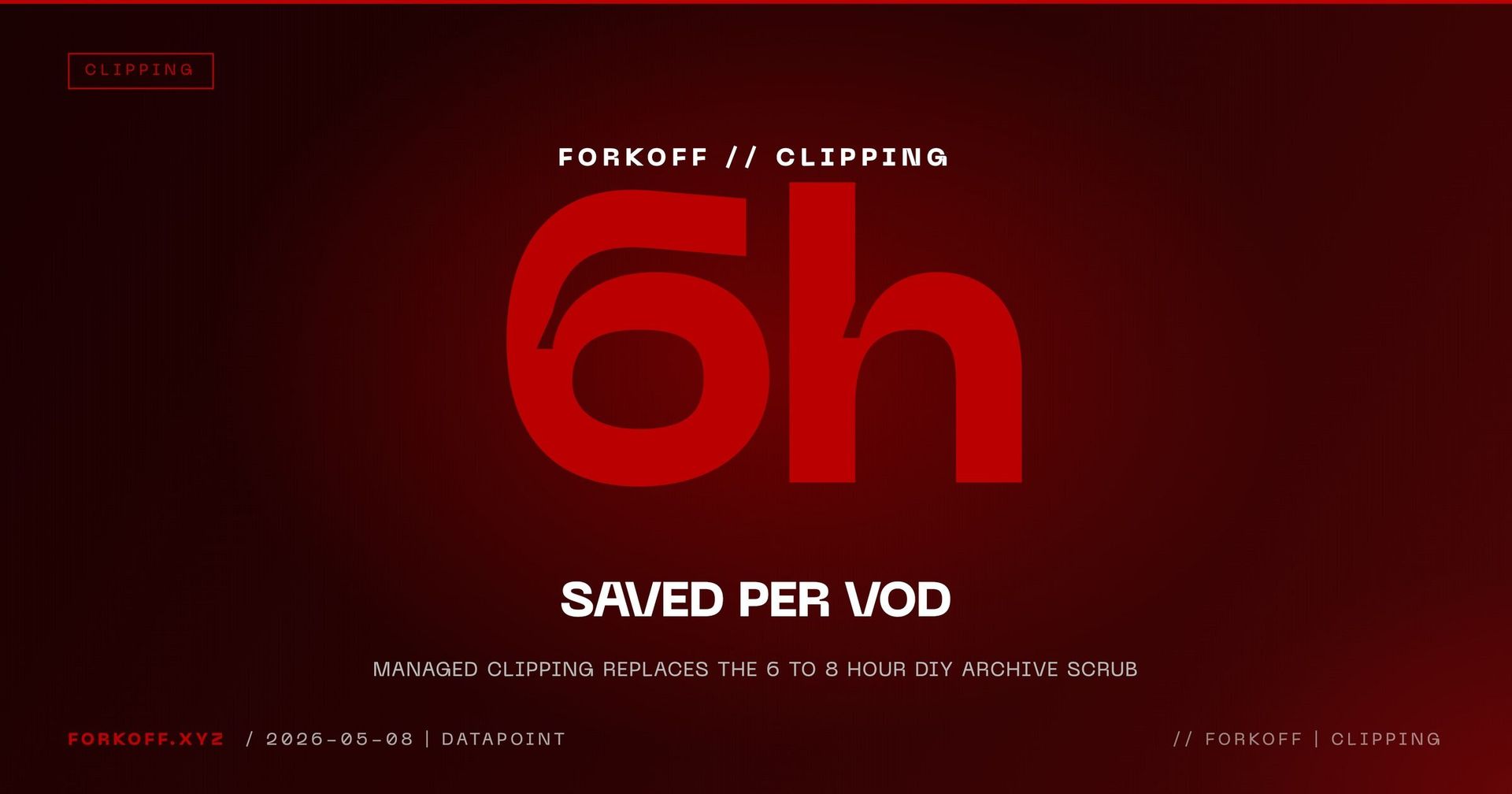
The DIY lane works for the first two months of any streamer's clipping motion. AI tools like OpusClip, Klap, and Vizard ship a serviceable native clip plus a vertical re-cut for $20 to $99 per month. The output is template-driven, the captions are auto-generated, the cropping is center-cropped or face-tracked depending on the tool, and the publish is one platform at a time. The full breakdown is on the AI clip tools comparison page.
The managed-agency lane unlocks at the threshold where the production cycle becomes the bottleneck. The thresholds:
- The streamer is shipping 4 or more streams per week and the VOD backlog is growing faster than the clip output.
- The off-platform re-cut lane crosses 20 clips per week per destination platform, which is roughly 80 publishes per week aggregate.
- Brand-side spend on the streamer's distribution requires a denominator (CPQV, qualified-view ledger, audit-ready settlement).
- The streamer has a talent-agency or a roster relationship and clipping is centralized across 5 or more streamers.
At those thresholds the DIY tool stops scaling because the human production cycle (cropping, hook design, caption tuning, watch-time variant testing per platform) cannot run on a $99 subscription. Managed desks ship the production cycle on a per-qualified-view price that maps to brand-side budget. The buyer-side decision is rarely a hot swap. Most streamers run the DIY tool and the managed desk in parallel for a quarter while the qualified-view ledger fills out, then route the highest-value source moments through the managed lane and keep the DIY output for the rest.
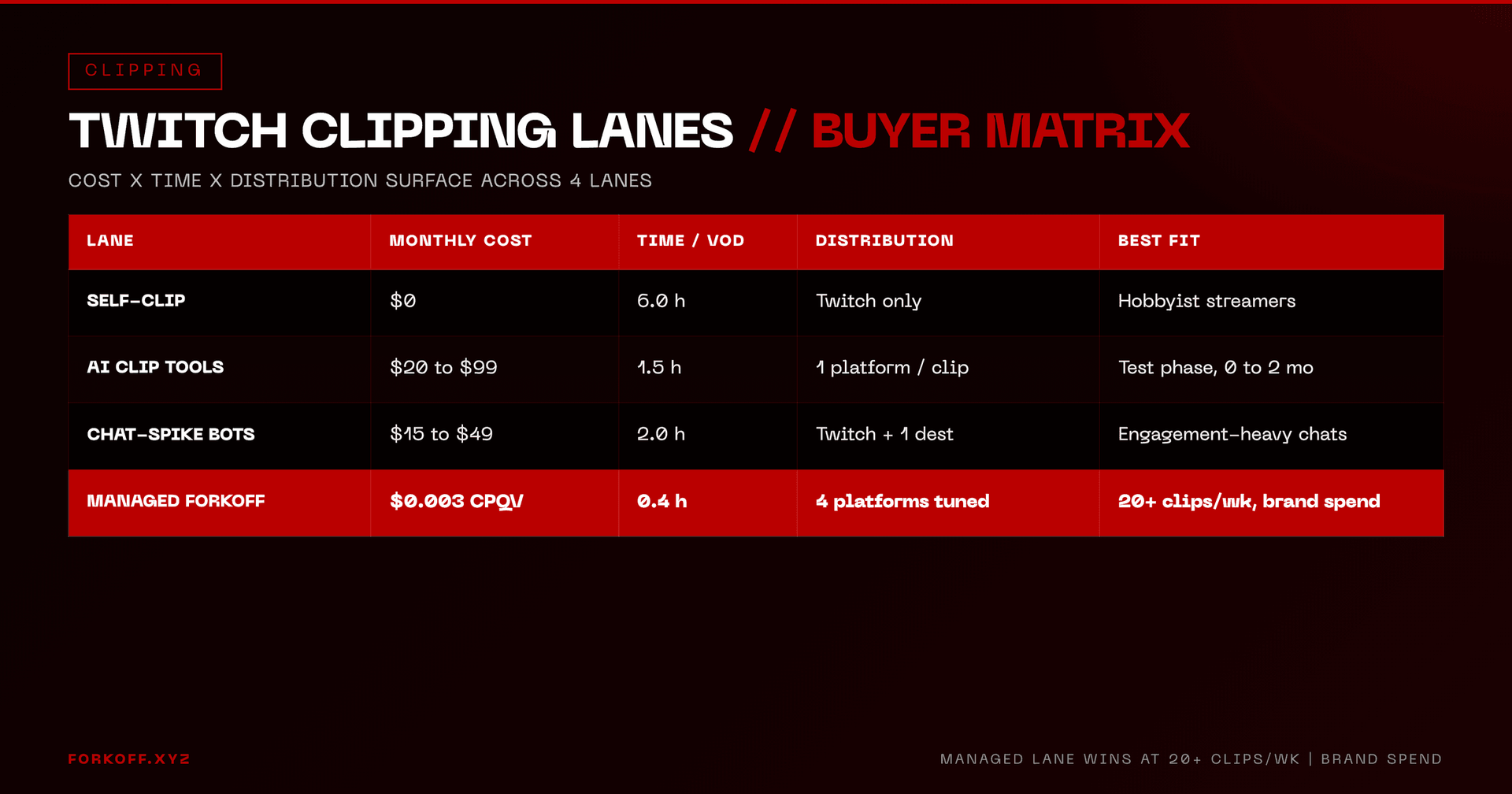
AI clip tools vs managed clipping, side by side
| Lane | Monthly cost | Time per VOD | Distribution | Best fit |
|---|---|---|---|---|
| Self-clip (in-Twitch) | $0 | 6.0 h | Twitch only | Hobbyist streamers |
| AI clip tools (OpusClip, Klap) | $20 to $99 | 1.5 h | 1 platform per clip | Test phase, 0 to 2 months |
| Chat-spike bots (KoalaVOD) | $15 to $49 | 2.0 h | Twitch + 1 destination | Engagement-heavy chats |
| Managed FORKOFF clipping | $0.003 CPQV | 0.4 h | 4 platforms tuned | 20+ clips/wk, brand spend |
FORKOFF Clipping Ledger 2026-Q1 sample n=3,085 clips. CPQV settles only on watches held to 75 percent completion in the topical cluster on an actionable feed.

Frequently Asked Questions
A Twitch clip is a 5 to 60 second cut of a live stream or VOD that any logged-in viewer can capture by hovering the player and clicking the clip icon (or pressing Alt+X on Windows, Option+X on Mac). The clip is saved to your personal Clip Manager at twitch.tv/yourname/clips and to the streamer's public Clips section. The streamer keeps the right to disable clipping, restrict it to followers or subscribers, or revoke a single clipper's permission.